
After login you will reach to Kingsgate Admin Dashboard, navigate to "Kingsgate International School" -> "Visit Site"
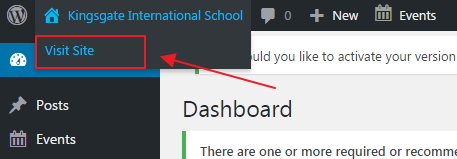
Step 1 :
Navigate to the page that you wish to edit and select the "Edit Page" button on top bar.
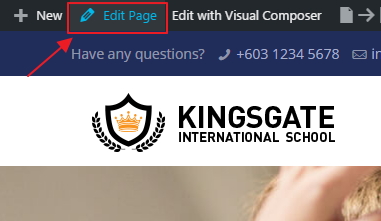
Step 2 :
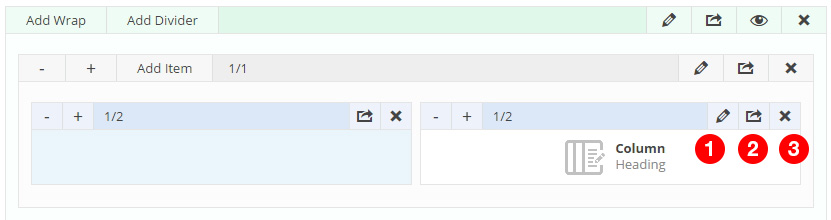
After that, you will see the layout of the webpage in "Column and Editable Format".
There are 3 main useful button:
No. 1 Pencil Icon - Click to Edit
No. 2 Duplicate - Click to duplicate the same content/image
No. 3 Remove - Click to remove the content/image
You can also rearrange the layout by clicking on the box bar and drag it to move the content from current column to other column.
Step 3 :
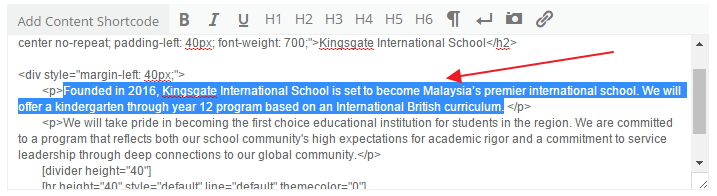
When you edit the contents like below. Please only edit the text.
Do Not edit anything inside "< >" because it is a programming code.
Scroll down and select the "Save Changes" button once you have done the changing.
Step 4 :
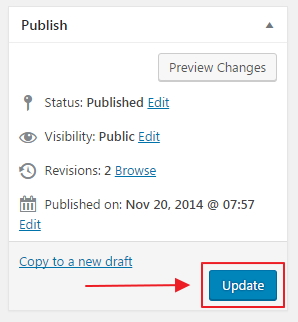
After done all the changes, press the "Update" button.
Once its update, it is saved and live on your website.
Step 1 :
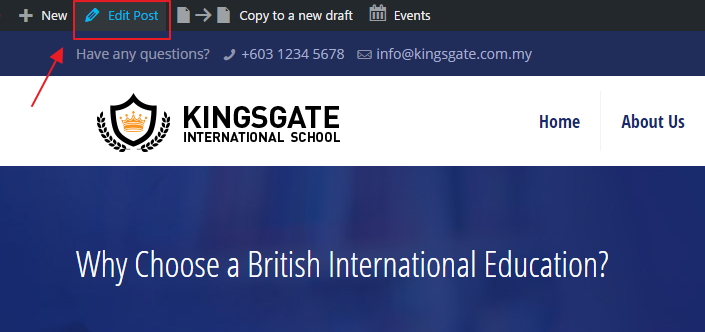
Select to "Edit Post" on the post page.
Step 2 :
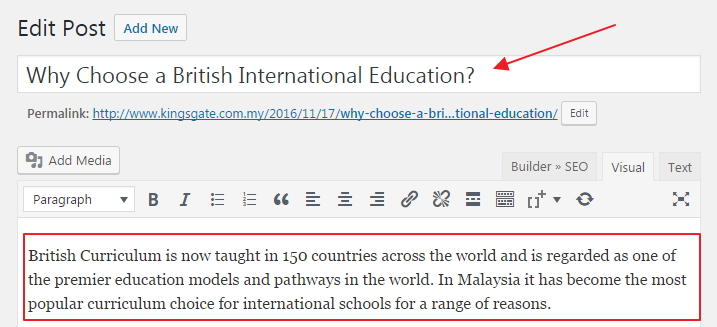
Enter the new post title and new contents.
Step 3 :
To change the post "Excerpt".
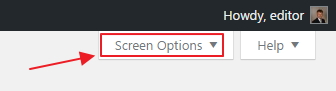
Select "Screen Options" on your top right.
Step 4 :
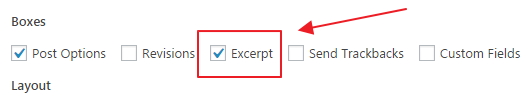
Make sure "Excerpt" box is checked.
Step 5 :
Now, scroll down and you will see a new column named "Excerpt".
Enter your Excerpt here.

Step 6 :
After done all the changes, press the "Update" button.
Once its update, it is saved and live on your website.